In the notch
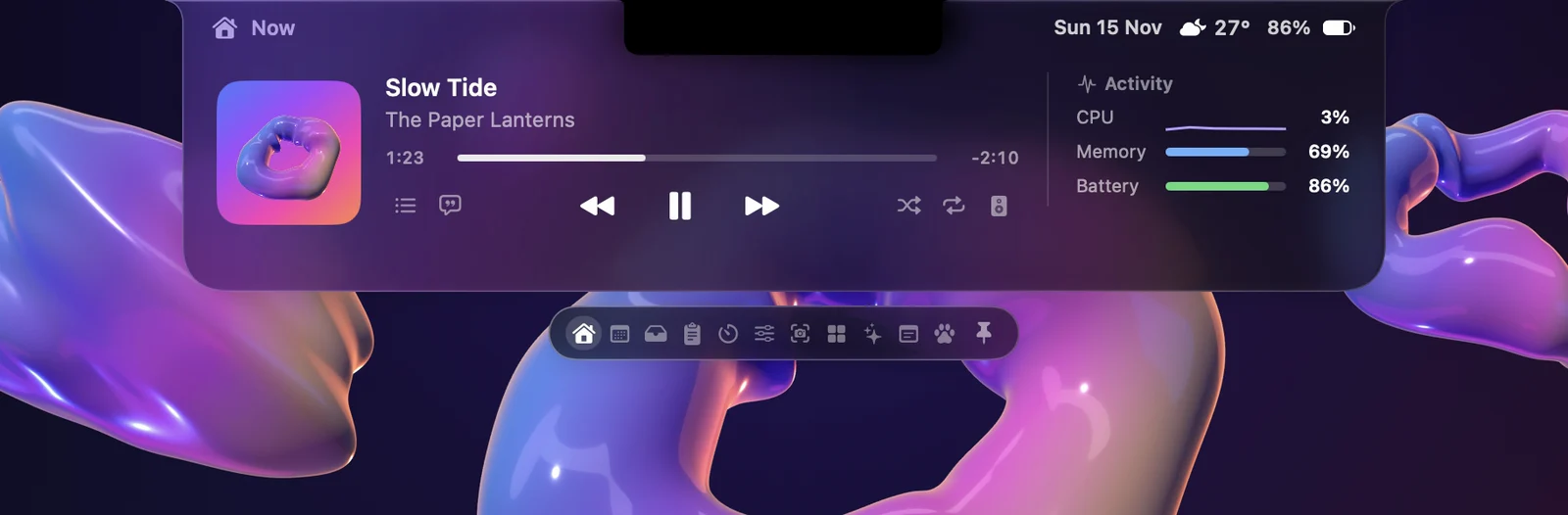
The album art on the left and bars on the right that move with the actual sound.
It strolls along your menu bar, wanders right across the notch and naps while you're away. Pat it, feed it, play with it. And around it, your notch comes alive with music, timers, notices and handy tools.
Your pet
Pick one of 17 pixel pets. It lives in the free parts of your menu bar, so it never covers anything you need.
Point at it and it loves it. Click it on the menu bar for its card: name, age and mood.
Fill its hearts from the notch's Pet page. Its favourite food has a star and fills them fastest.
It slowly gets hungry and bored, naps while you're away, and never gets ill or leaves.
Around the pet, your notch gets to work. Music, timers, messages, files and tools, all at the top of your screen.
Keep scrolling.
Around the pet
Music
Music, Spotify, and whatever plays in your browser.
The album art on the left and bars on the right that move with the actual sound.
Click the notch, or press ⌃⌥N. Play, pause and skip, and drag the bar to jump within a song.
Line by line, in time with the song.
The songs coming up, beside the player.
Pick where the sound goes: the Mac's speakers, your headphones or an AirPlay speaker.
Timers
Start a timer in one click and keep an eye on it without opening anything.
Calendar and calls
Your next event counts down in the notch, and joining is one click.
Notices
Clean, glanceable pop-ups that drop from the notch, in place of macOS's own.
A clean level bar when you press the keys.
ReplacesmacOS's own pop-up
Who just connected, with a battery ring when the device reports one.
Also forHeadphones, keyboards, mice and controllers
Plugged in, unplugged, running low or fully charged.
Warns at20% and 10%
See which input you just switched to.
AlsoCaps Lock, on and off
A download ring while a file comes in.
When it's doneA notice with the file's name
A notice the moment a timer ends.
WithA sound
A heads-up before it starts. Click it to join the call.
Works withZoom, Meet, Teams, Webex and FaceTime
Know the moment it finishes, and which session it was.
Works withClaude Code and Codex
⌘Q only quits when you hold it; the notch shows how long.
StopsQuitting an app by accident
Messages
A message arrives while you work. Click it, type your reply and press Return.
AI agents
See when your coding agent is working, and the moment it's done.
In the open notch
Click the notch and it opens. Each page does one everyday thing.
Drag files to the notch and drop them. They wait until you drag them out.
AlsoAirDrop them from there
What you copied, as cards: text, links and colours.
Shortcut⌃⌥V opens it
Today's events, reminders to tick off, and the month.
Add eventsIn plain words
A scratchpad that stays open while you type, and a to-do list.
Closes withEsc
Volume, brightness, sound output, Keep awake and your microphone.
AlsoDark mode and Lock Screen
Your favourite apps, your Shortcuts, and a one-line terminal.
RunsApple Shortcuts in one click
Now and the next few hours, beside your music.
ShowsHour by hour
Tools
Capture, copy and arrange things without leaving what you're doing.
Screenshots. Press ⌘⇧2, pick an area or a window, then mark it up.
Screen recording. An area or a window, as a movie or a GIF.
Copy text. Drag over any text you can see and it's copied.
Colour picker. Point at a pixel; its code is copied.
Window layouts. Halves, thirds, quarters, and a switcher on ⌥Tab.
Command bar. ⌃⌥Space finds apps and files, and does sums.
Any Mac
On a MacBook, Orbia lives in the notch. On a desktop Mac or an external display, it's a floating island at the top of the screen.
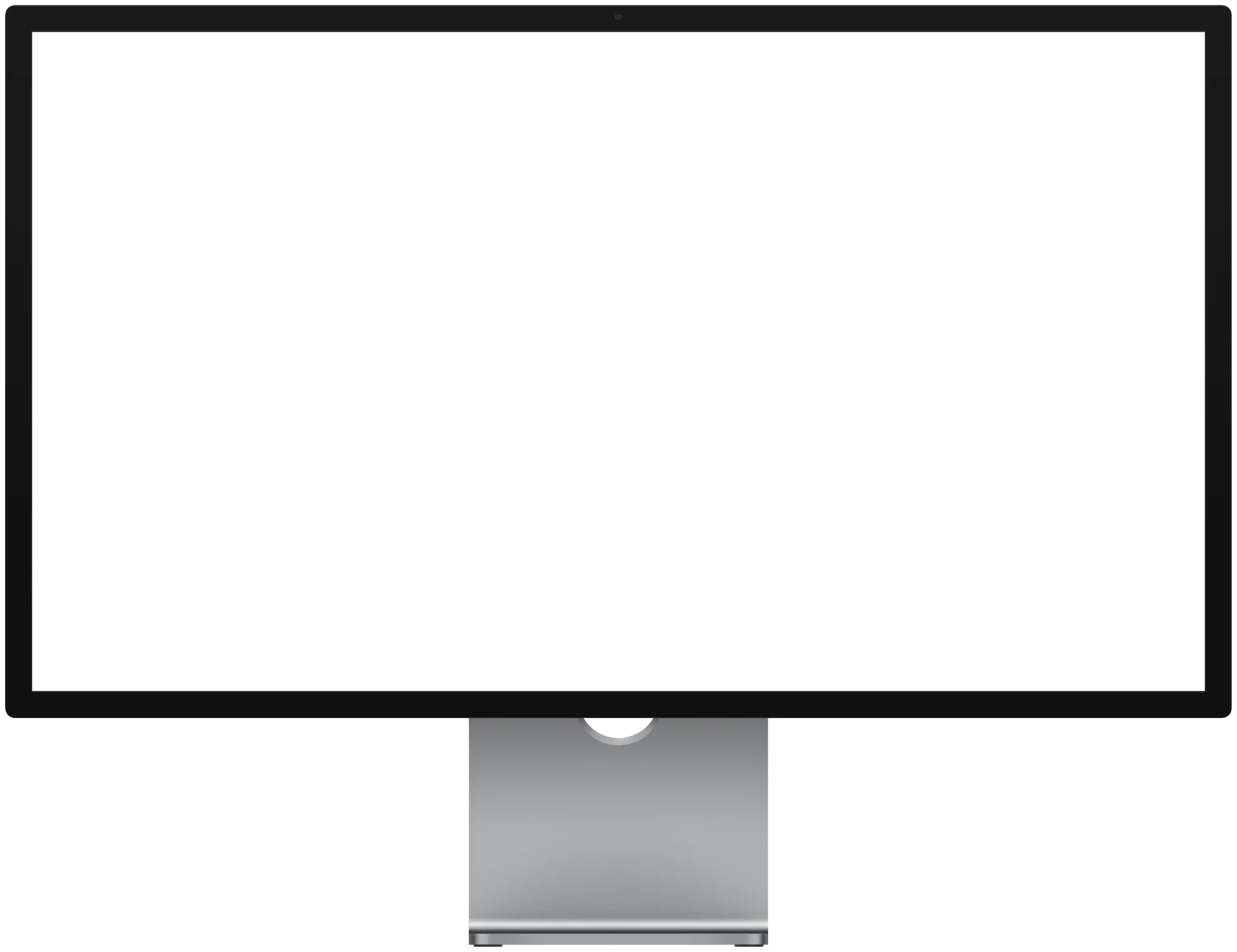

Orbia sits around the camera. Closed, it's exactly the camera's size; a slim strip grows on each side when something's going on, and a click opens it.
On a Mac mini, Mac Studio, iMac or an external display, Orbia is an island at the top of the screen, with up to two readouts on each side. Or have it hang from the menu bar only when it's needed. You choose per screen.
Two screens? Show Orbia on the one with the notch, the one with the pointer, or every screen.
Looks
Keep the notch classic black, or let the open notch, notices and panels turn to glass that lets your desktop show through.
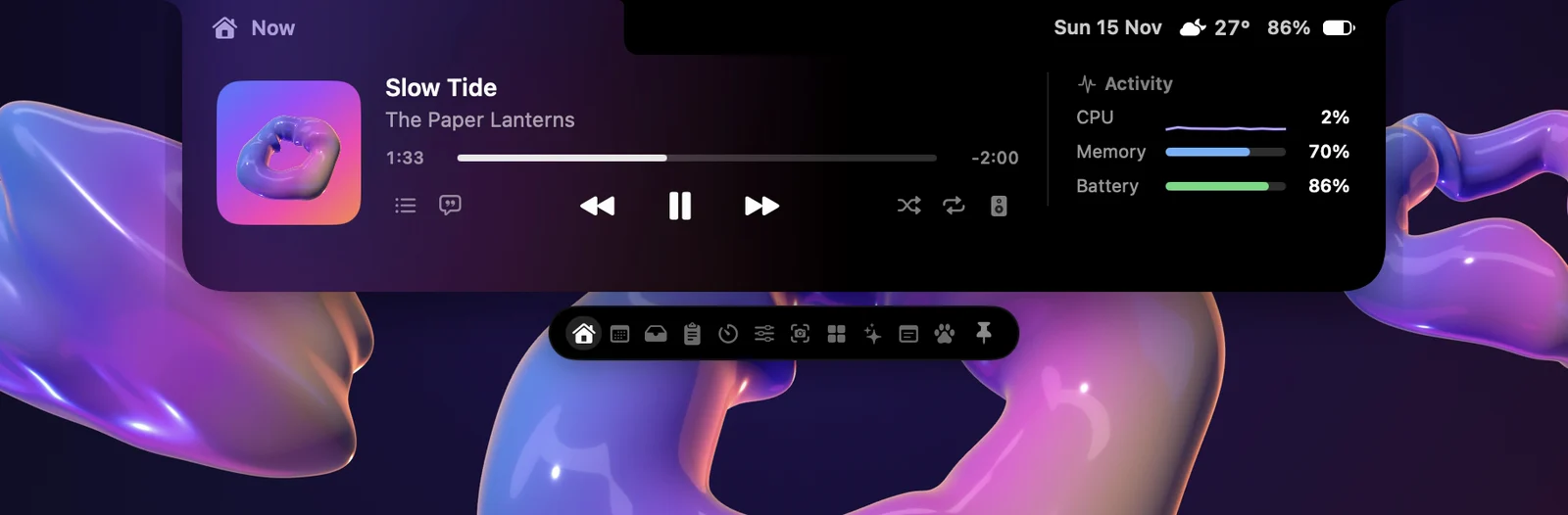
Solid black, like the notch itself.
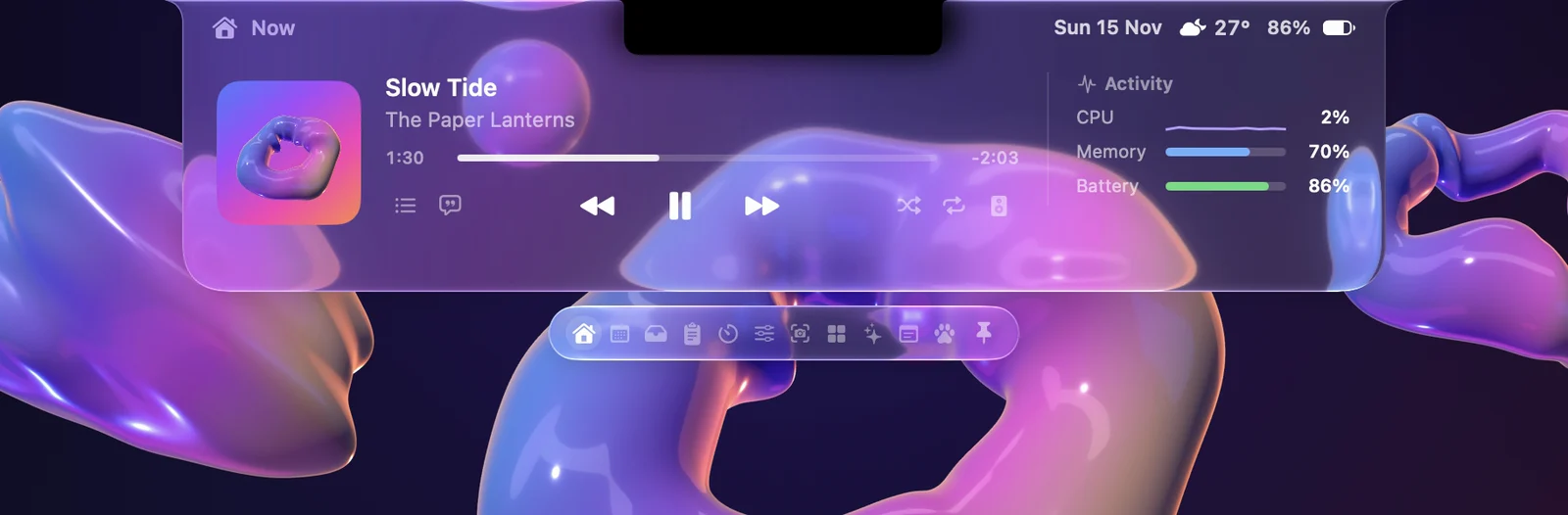
The most see-through. Your desktop shows through and bends at the edges.
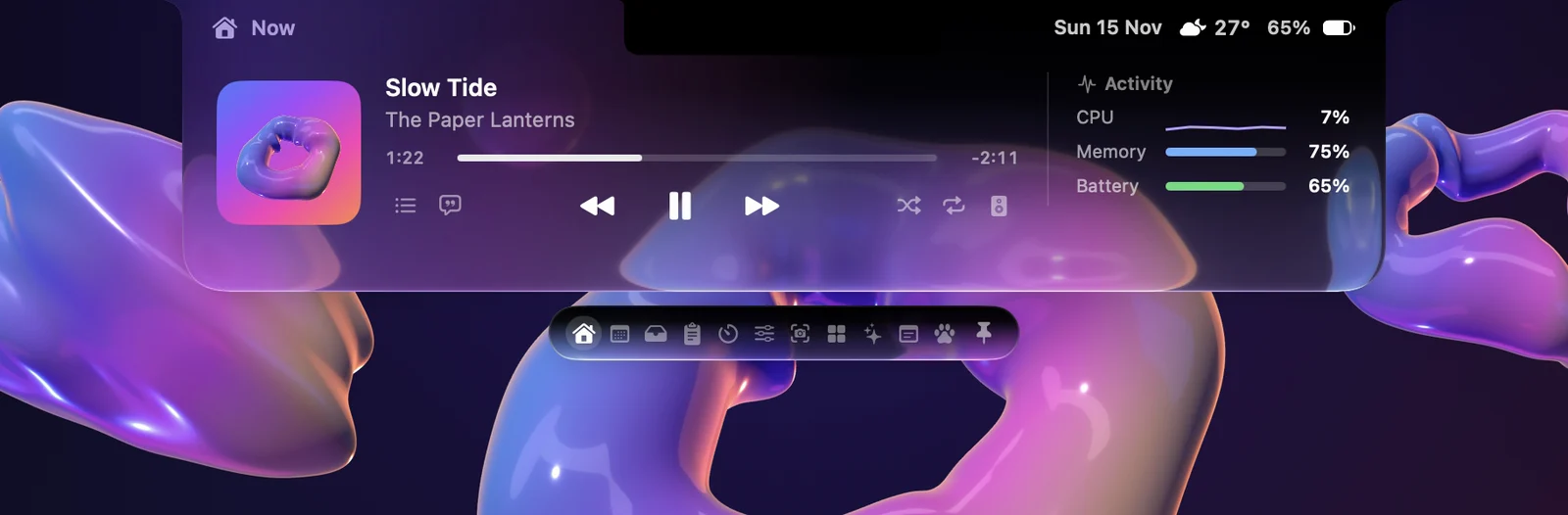
Black at the camera, melting into clear glass further down. Liquid Glass starts with this one.
Smoked glass, the easiest to read over anything.
On macOS 26 and later, Orbia uses Apple's own Liquid Glass. The closed notch always stays black, to match the camera.
Pricing
 ORBIA
$9.99once
Payment and sales tax are handled by Polar.
Needs macOS 14 or later and a Mac with Apple silicon.
FAQ
The trial starts the first time you open Orbia and lasts 7 days, with everything included. When it ends, Orbia asks for a license key. Buy it once and keep using it.
Yes. Settings → Pet has a switch for it, and the pet you pick. Every other feature has its own switch too, so Orbia shows only what you want.
It's on your Orbia purchase at Polar; the link to it is in your receipt email. In Orbia, open Settings → General → License and enter it there.
One license works on 2 Macs. On the old Mac, open Settings → General → License and choose Remove from This Mac to free its spot. If the old Mac is gone, remove it from your purchase page at Polar instead.
Orbia checks for updates by itself and installs them with one click, so you don't need to come back here. Updates are included in the price.
Orbia needs macOS 14 Sonoma or later and a Mac with Apple silicon (M1 or later). It's made for the notch and works without one too: on a screen with no notch it's a floating island at the top, or it can hang from the menu bar if you prefer.
No. Playing, pausing, skipping, the album art, the moving bars and Spotify's own lyrics work without it. Connecting adds Spotify's queue and Liked Songs; here's how.
Try it free for 7 days first. If you buy it and it still isn't right, you get a full refund within 7 days of buying: email support@depentra.com. See Refunds.
The help page covers installing, permissions, your license, updates and common fixes. Anything else, email support@depentra.com.